Connect Arduino to mBlock
Step-by-step guide with screenshots to connect your Arduino Nano to mBlock. Includes troubleshooting.
Before You Start
Checklist:
- mBlock is installed and working.
- USB cable (data cable, not a cheap charge-only cable).
- Ask your teacher which USB Chip you have: CH340 or FT232R
- Ask your teacher which Arduino Nano firmware you have: Arduino Nano or Arduino Nano (old).
Step 1: Install Arduino Drivers
To use your Arduino Nano, you need drivers for the USB chip. Most computers have them, but install if needed.
For CH340 Chip (most common):
CH340 Driver DownloadFor FT232R Chip:
FT232R Driver DownloadChecklist:
- Download the driver for your Arduino's USB chip.
- Unzip if needed, run the installer.
Troubleshooting:
- If Arduino doesn't show up in mBlock, try a different USB port.
- Try restarting your computer after installing.
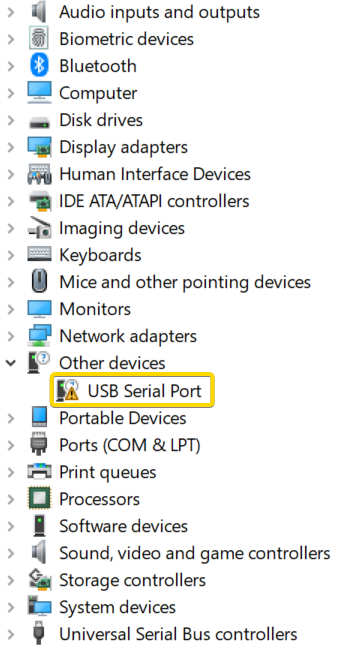
- Check Device Manager (Windows) for "USB Serial Port" or "Unknown Device"
Step 2: Open mBlock and Add Device
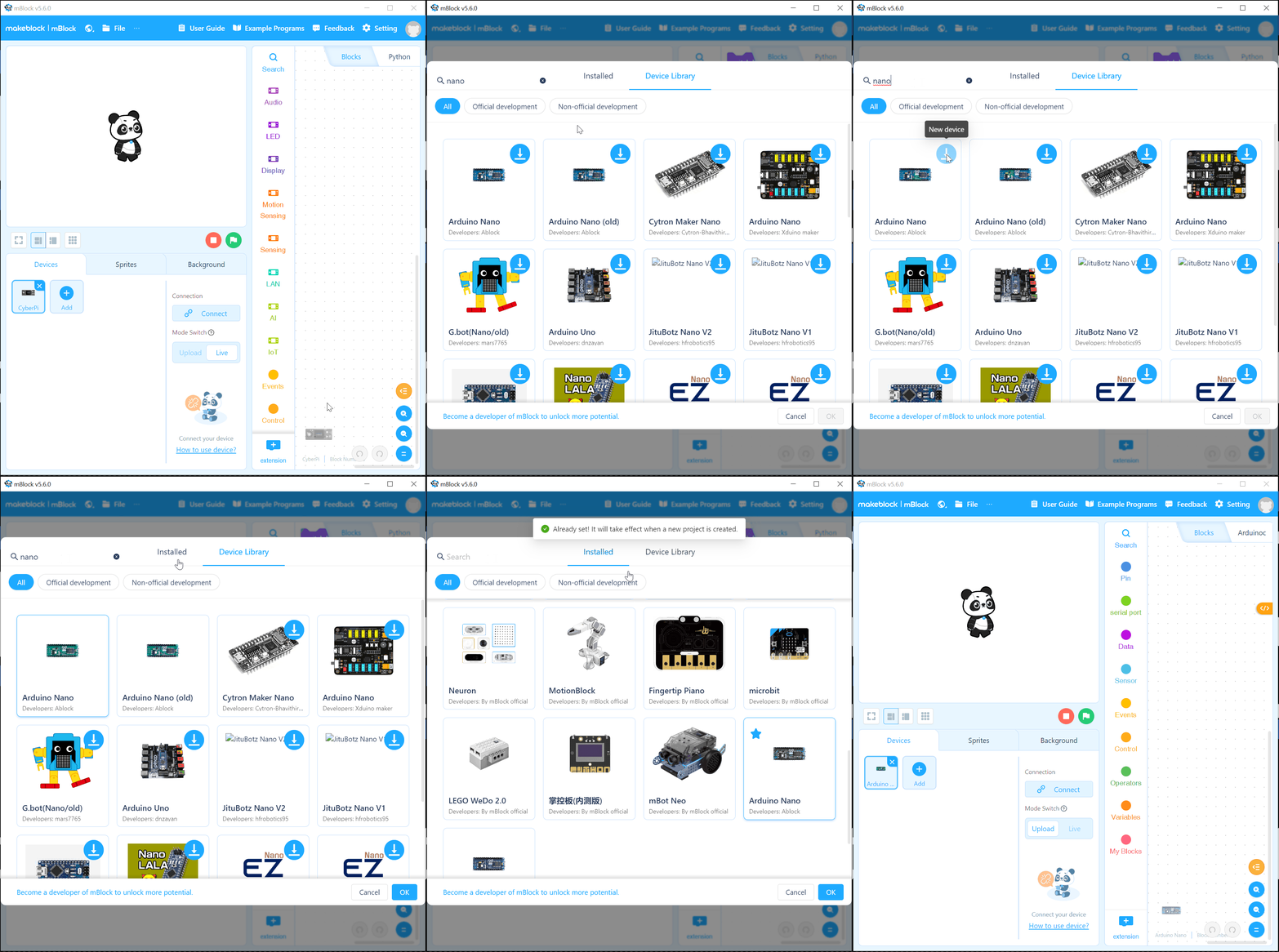
- 1. Open mBlock.
- 2. Click the Devices tab.
- 3. Remove any devices you don't need (e.g., CyberPi).
- 4. Click + Add → Device Library.
- 5. Search for "nano" and add both Arduino Nano and Arduino Nano (old).
Step 3: Connect Arduino
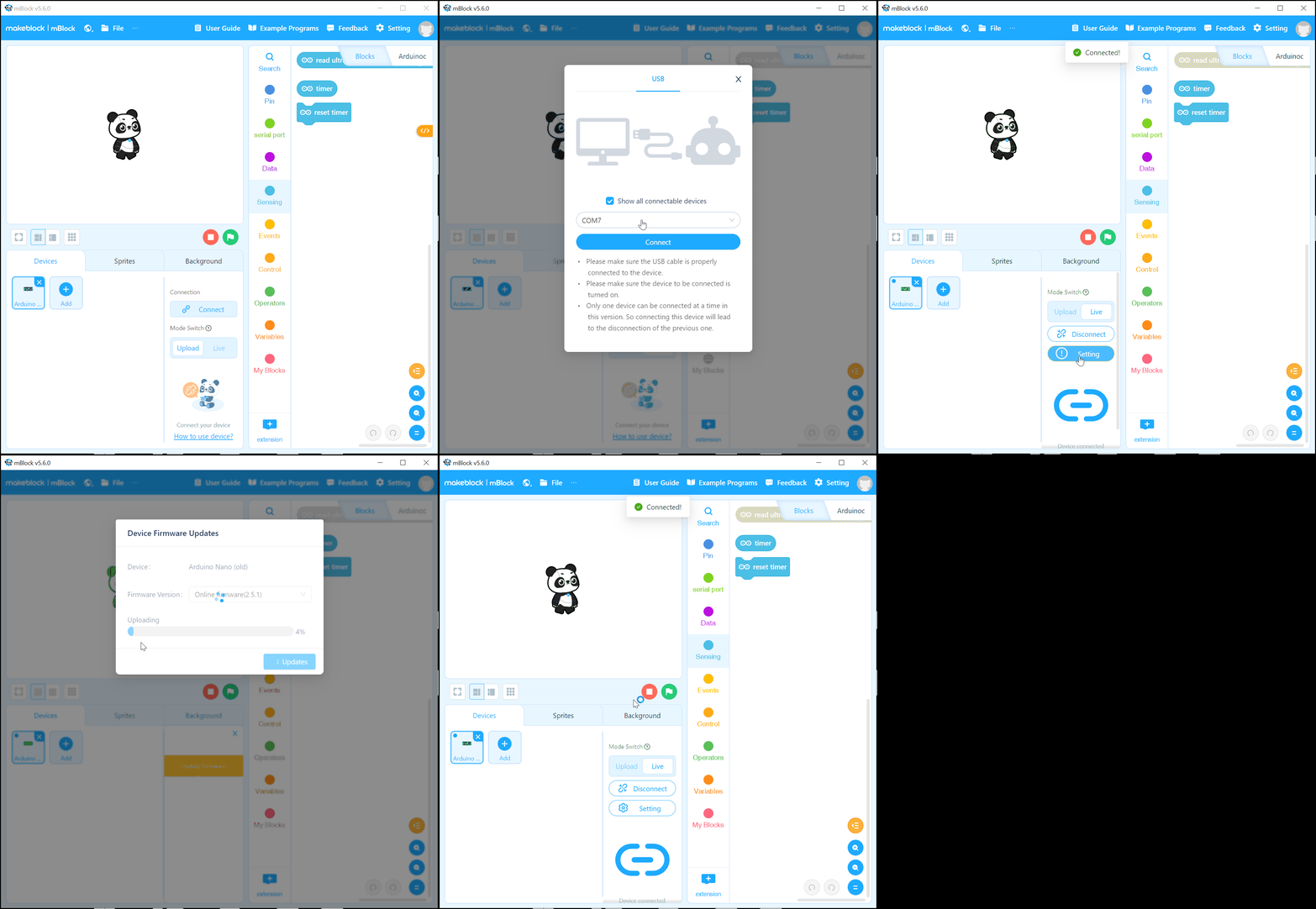
- 1. Plug in your Arduino Nano with the USB cable.
- 2. In mBlock, click the device dropdown and choose the correct Nano type (ask teacher).
- 3. Choose the serial port that appears (COMx on Windows, /dev/tty.* on Mac).
- 4. If you are unsure which port try unplugging the cable and see which port disappears.
- 5. Click Connect.
Step 4: Test it!
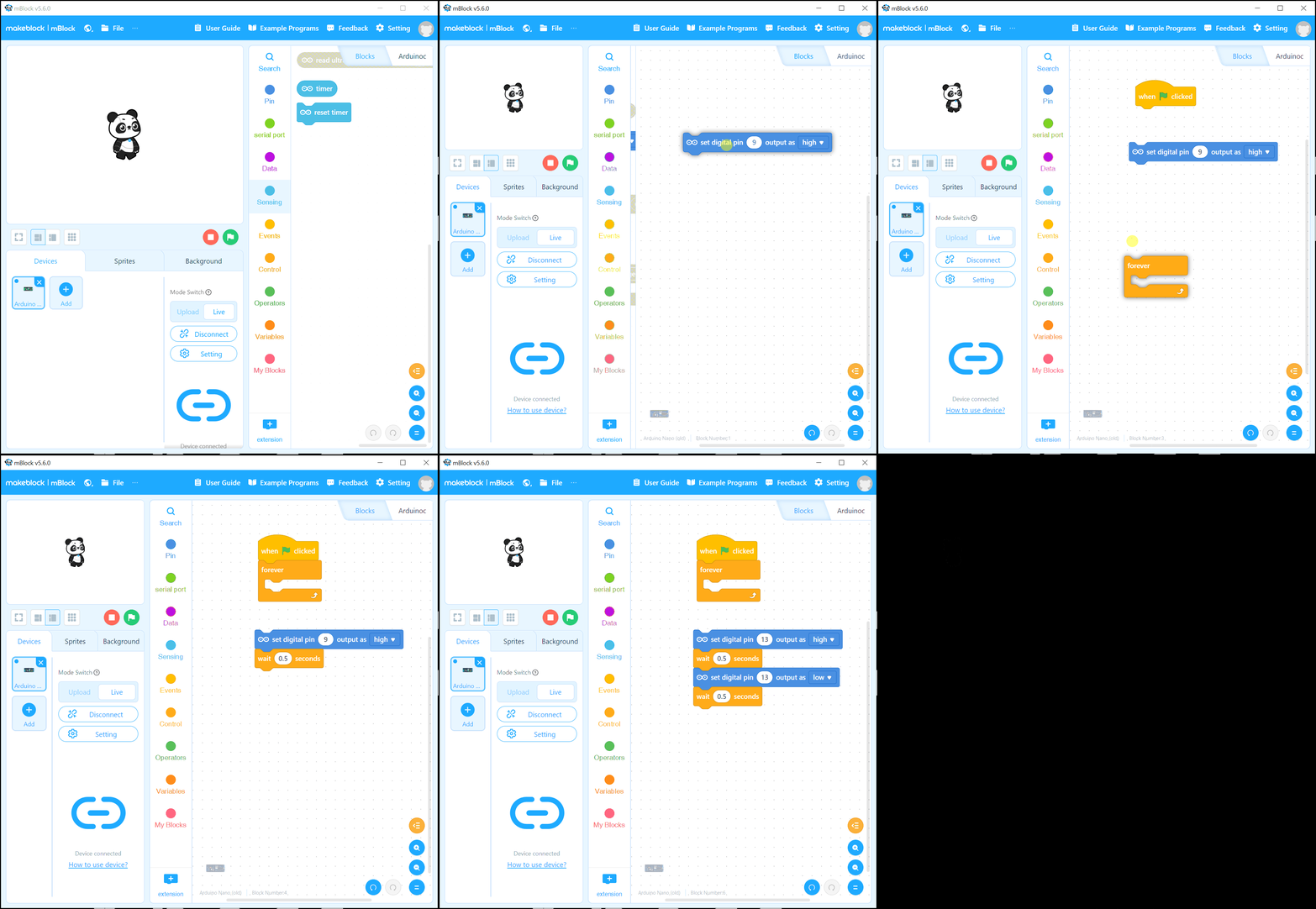
Upload a simple program to test:
- 1. Drag a "when green flag clicked" block.
- 2. Add a "digital write pin 13 to high" block.
- 3. Click the green flag — the LED on pin 13 should light up!
Troubleshooting
If it doesn't connect:
- No serial port appears: Install the driver (see above). Restart computer.
- "Access denied": Close mBlock and re-open as Administrator (Windows).
- Wrong port: Try different USB ports or cables.
- Still not working: Ask teacher which Nano type to use (Nano vs Nano old).
- Mac issues: May need to allow in System Preferences > Security & Privacy.
If you see "Unknown Device" in Device Manager (Windows), you need the driver. Email stem@dashx.net if stuck!