Download & Install mBlock
Follow these steps to get mBlock on your computer. Do this before class!
Download mBlock
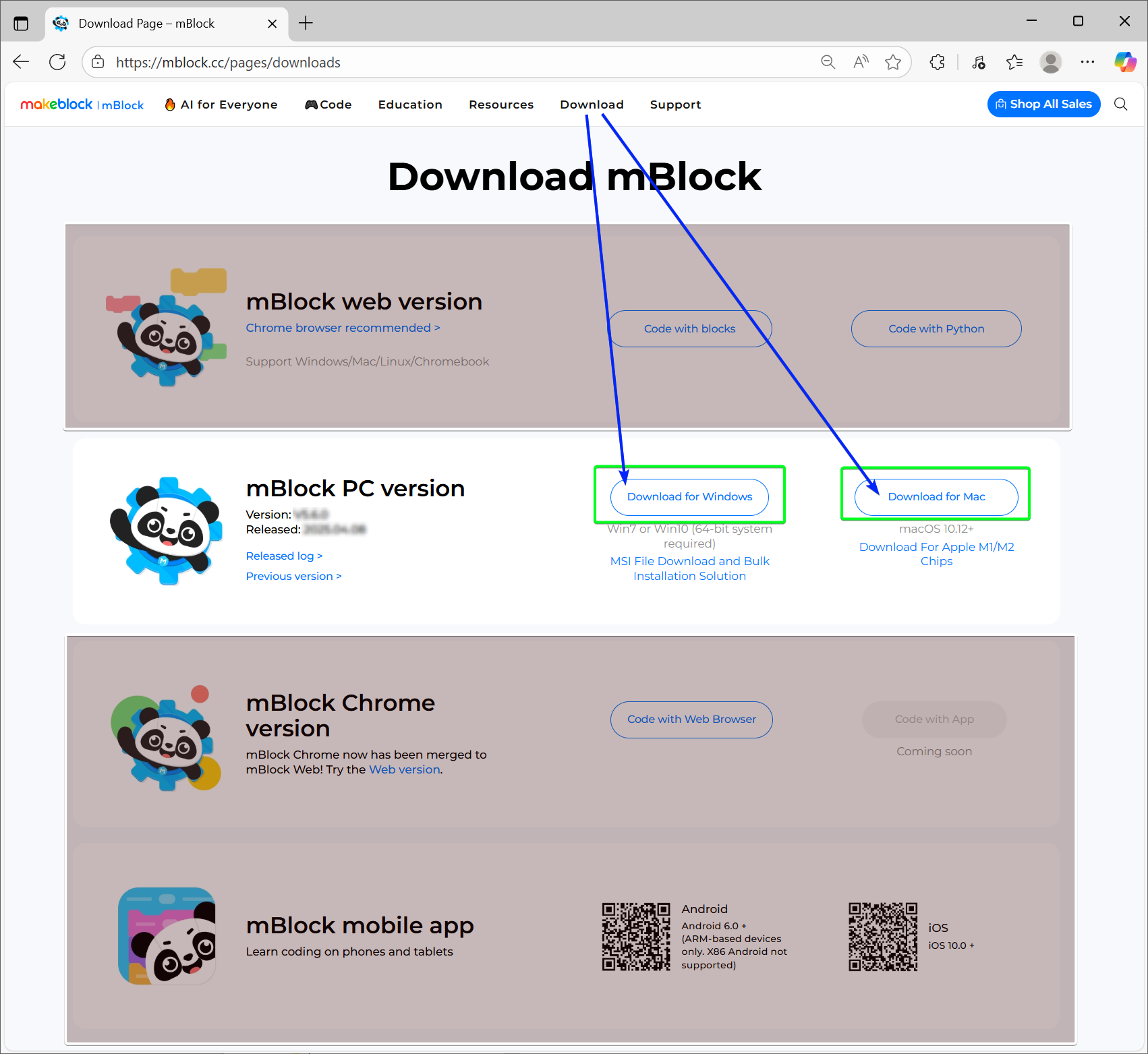
Go to the official mBlock website and download the latest version for your computer (Windows/Mac).
Download mBlock (opens in new tab)
Checklist:
- Choose the mBlock PC version
- Choose the right version for your OS (Windows/Mac).
- Save the installer file to your Downloads folder.
- Remember where you saved it!
Install mBlock
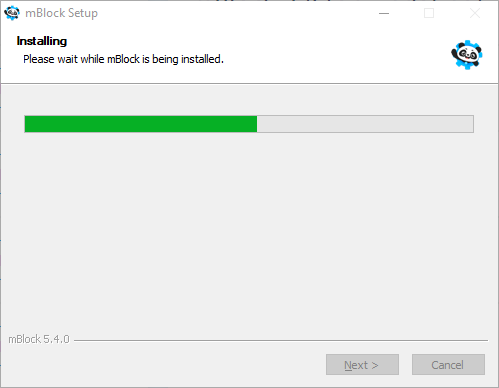
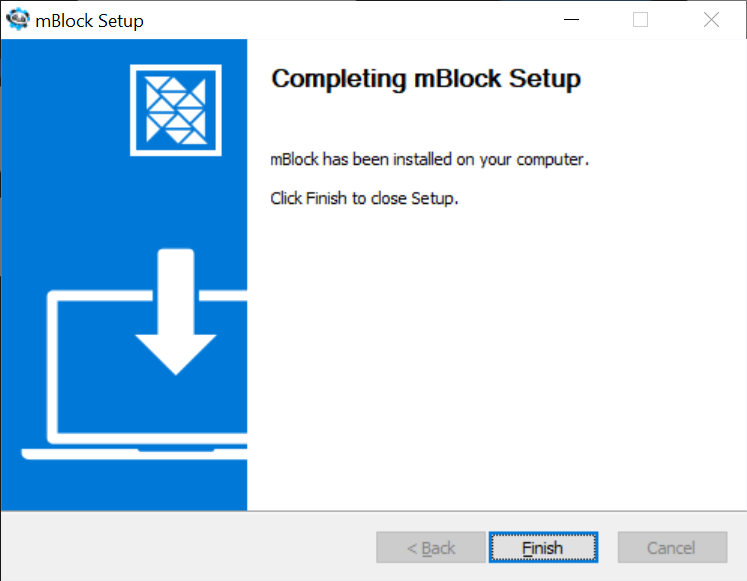
Run the installer you downloaded. Follow the on-screen instructions.
Checklist:
- Double-click the installer file.
- Agree to the terms and choose install location.
- Wait for installation to finish.
Troubleshooting:
- If it says "not trusted", right-click and "Run as administrator" (Windows).
- If blocked by antivirus, temporarily disable it during install.
Start mBlock - First Run
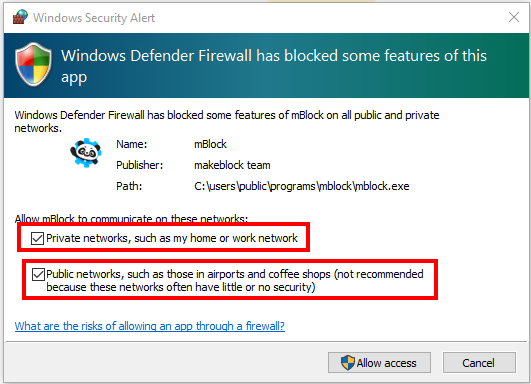
If Windows Defender asks for permission to connect to the internet - check both boxes yes and Allow access
The first time mBlock runs it may take 1-5mins to load - be patient 🥱
You must hit the "Agree" button at the top (Reject will exit mBlock)

Checklist:
- Run mBlock.
- Launch mBlock to make sure it works. (It may take a long time to open the first time)
Test It Out
Open mBlock and try creating a simple project.
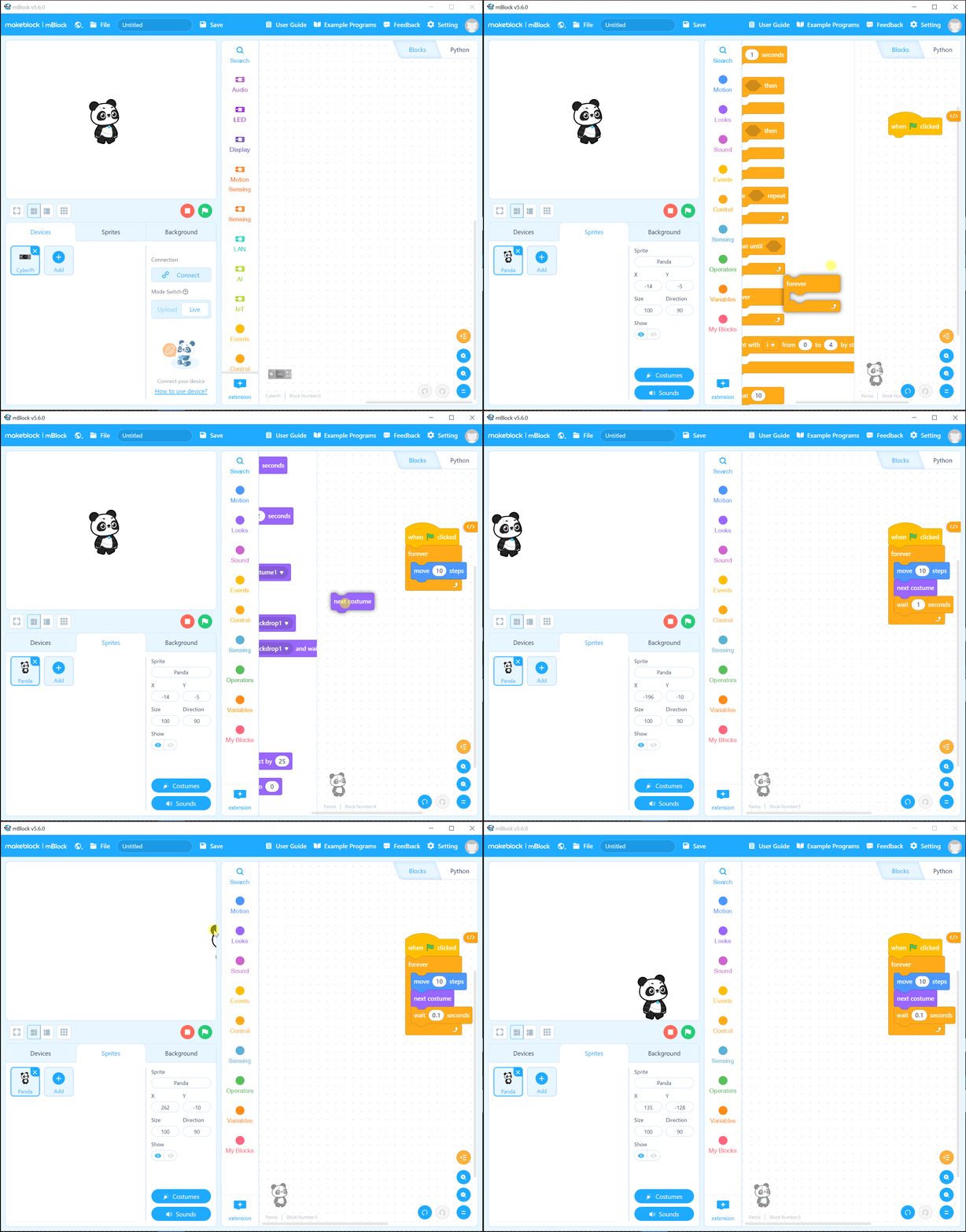
Checklist:
- Open mBlock.
- Drag some blocks to make a simple program (e.g., move sprite).
- Click the green flag to run it.
If everything works, you're ready for class! If not, check the troubleshooting above or email stem@dashx.net.